
AI Avatar API Integration Guide

Updated: Aug 21

API integration” for an AI avatar platform usually means one of three things: embedding a ready-to-go avatar widget on your site, wiring the avatar into no-code automation tools like Zapier, or calling a REST API directly from your own backend. This guide covers exactly what Mimic AI Studio offers across all three today, tested directly inside the live product - including what's fully working right now and what's still rolling out.
Quick answer: Mimic AI Studio's primary integration method today is a CDN-hosted widget embed - a script tag you paste into any website that turns a Mimic avatar into a live, interactive chat presence. A Zapier connector and native Gmail/Calendar workflow connectors are also visible in the product under an Alpha/New label, for teams who want no-code automation once those finish rolling out. |
That distinction matters more than it sounds. A lot of integration guides quietly gloss over the gap between “visible in the product” and “actually functional,” which leaves developers debugging their own code for an hour before realizing the button they clicked never did anything in the first place. Everything below was clicked, tested, and screenshotted directly inside the live product specifically to avoid that, status labels reflect what was actually observed, not what the marketing copy implies.
Table of Contents
Integration Options at a Glance
Before the walkthrough, it's worth being precise about what each integration path actually is, since the terminology gets used loosely across the industry:
Method | What it is | Status in Mimic AI Studio |
Widget embed | A script tag you paste into your site's HTML; renders a live avatar chat widget | Live and fully working |
Zapier connector | No-code trigger/action automation across 5,000+ apps | Visible in-product, labeled Alpha - connection handshake not yet live |
Native connectors (Gmail, Calendar) | Direct OAuth connections inside the AI Workflow builder | Visible in-product, labeled New - connection handshake not yet live |
Workflow automation canvas | Drag-and-drop builder for chaining triggers, AI steps, and actions | Live and fully working (independent of connector status) |
Step-by-Step: Integrating an AI Avatar
Step 1: Sign In to Mimic AI Studio
Sign in with your email and password, or one-click Google sign-in.
Step 2: Embed an Avatar Widget on Your Site
This is the integration path that's actually live today. Open Widget in the sidebar and click Create. Name the widget, give it the website URL it'll live on, and choose whether it uses a platform persona or one of your own custom avatars.


Step 3: Get the CDN Script Tag
Once created, the widget gives you a CDN-hosted JavaScript URL. Paste a script tag pointing at that URL into any page's HTML, and the avatar renders there as a live chat widget - no backend code, no API keys, no server-side integration required on your end.

Step 4: Connect External Apps via Zapier (Alpha)
Open External Apps in the sidebar. Zapier is listed as an available integration, tagged “webhook” and pointing at 5,000+ downstream apps - the standard no-code automation pattern of triggering external workflows off events in your account.

Current status: Clicking Connect and Docs on this card currently produce no response - no OAuth redirect, no modal, no error. The card is honestly labeled Alpha; treat this as a preview of an integration that isn't wired up yet rather than one you can use today. |
Step 5: Native Connectors: Gmail & Google Calendar
A second, separate integration surface lives inside AI Workflow → Connectors: direct Gmail and Google Calendar connections, meant to let an avatar reference your inbox or schedule during a conversation.

Current status: Same as Zapier above - Connect doesn't yet trigger an OAuth flow in the current build. This section is tagged New in the sidebar, consistent with it being early. |
Step 6: Build Automation with the AI Workflow Canvas
The connectors above aren't wired yet, but the automation builder they'll eventually feed into is already fully functional. Create a new workflow and you get a real drag-and-drop canvas: trigger nodes (Webhook, Calendar), AI nodes (Analyze Intent, Knowledge Base), and output actions (Gmail, Google Sheets) that snap onto the canvas and auto-save as you build.

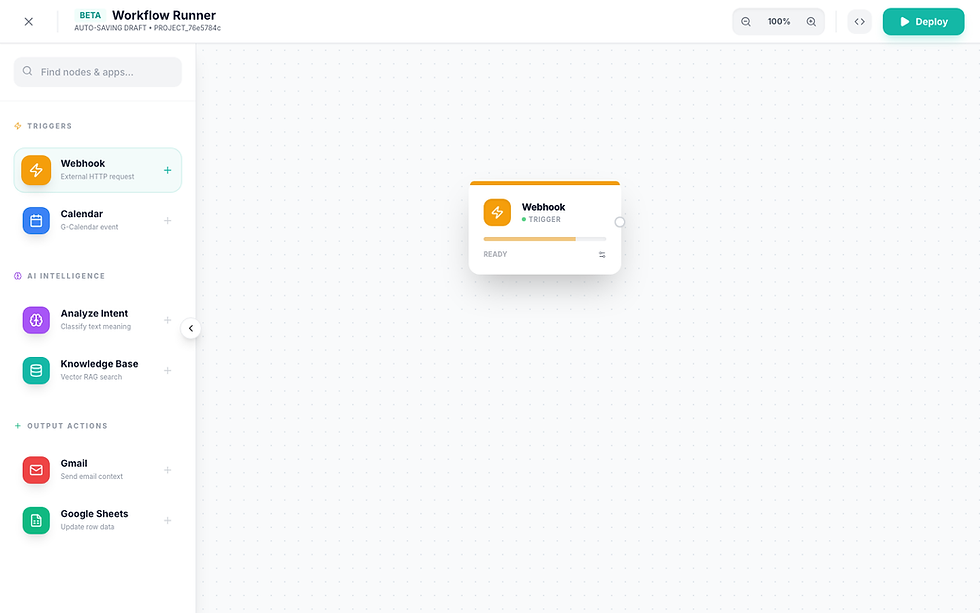
In other words: you can design the automation today and have it ready to go the moment the underlying connectors go live.
Comparison: Ways to Integrate an AI Avatar
Method | Setup Time | Code Required | Best For | Maturity |
Widget embed (script tag) | ~5 minutes | One HTML line | Adding a live avatar to any existing website | Production-ready |
No-code automation (Zapier/Connectors) | ~5 minutes once live | None | Triggering workflows off avatar/account events | Alpha / early access |
Workflow automation canvas | ~10 minutes to design | None (visual builder) | Chaining triggers → AI steps → actions | Builder is live; connectors pending |
Custom REST API integration | Hours-days | Yes | Deep, backend-level control over avatar behavior | Not currently public |
Benefits of Integrating an AI Avatar
No backend required for the most common case: the widget embed is a single script tag, not a server-side API integration.
One avatar, multiple surfaces: the same avatar you build can power a widget, a generated video, and (as connectors mature) automated workflows.
Transparent maturity labeling: Alpha and New tags in the product tell you exactly what's stable versus what's still being built, instead of silently shipping broken features as final.
Automation-ready architecture: the workflow canvas lets you design the automation ahead of the connectors that will power it, so there's no lost time once they ship.
Lower maintenance overhead: a script-tag widget doesn't need API key rotation, request signing, or rate-limit handling on your end; the complexity stays on the platform side.
Faster iteration: changing the avatar's voice, personality, or backstory updates every surface it's embedded on without touching the embed code itself.
Taken together, these add up to a lower total cost of integration than a typical REST API project: no SDK to maintain, no auth tokens to rotate, and no separate deployment pipeline just to keep an embedded avatar in sync with changes made in the dashboard.
Common Integration Mistakes to Avoid
Assuming every sidebar item is production-ready. Check for Alpha/New/Beta labels before building a workflow that depends on it going live on a specific date.
Skipping the website URL field when creating a widget. It's used to scope where the widget is expected to run - leaving it blank or wrong can cause confusion later when auditing which widgets belong to which property.
Publishing a widget script tag without testing it on a staging page first. Since the widget renders live, verify placement and behavior before it's on a production page visitors see.
Building a complex automation workflow before confirming which connectors it depends on are actually live - design it (the canvas supports this), but don't schedule a launch around a connector still labeled Alpha.
Confusing the internal “Manage APIs” admin page with a developer API console. It's a read-only view of backend rendering endpoints, not a place to generate API keys for your own integration.
FAQs
Does Mimic AI Studio have a public REST API?
Not currently. The product's integration surface today is a widget embed (script tag) plus emerging no-code connectors (Zapier, Gmail, Google Calendar) - there's no public API-key console for developers to call directly.
What's the fastest way to put an AI avatar on my website?
The widget embed. Create a widget in the Widget section, copy its CDN script tag, and paste it into your site's HTML - typically a five-minute integration with no backend work.
Is the Zapier integration usable right now?
It's visible in the product and labeled Alpha, but clicking Connect doesn't currently trigger an authorization flow. Treat it as a preview of what's coming, not a working integration yet.
Can an avatar read my Gmail or Calendar during a conversation?
That's the intent of the native Gmail/Calendar connectors under AI Workflow, but as with Zapier, the connection handshake isn't live yet - the cards are present but not yet functional.
Can I build automation before the connectors are ready?
Yes - the workflow canvas itself (dragging trigger/AI/action nodes and connecting them) is fully functional independently of whether the underlying connector is live, so you can design ahead of the rollout.
What is the “Manage APIs” page in Administration, then?
It's a read-only view of the internal rendering endpoints (2D/3D avatar streaming infrastructure) that power the product itself - not a developer-facing API key or credentials page.
Do I need to write code to embed a widget?
No - creating the widget is a form-based flow inside the product, and embedding it is one script tag. No custom code beyond pasting that tag is required.
Will a public developer API be added later?
Not something this guide can promise either way - it reflects what's testable in the product today. Check Mimic AI Studio's own channels for roadmap updates on API access.
Conclusion
Integrating an AI avatar into your own product doesn't have to mean building against a REST API - today, inside Mimic AI Studio, it means a five-minute widget embed for the common case, with a no-code automation layer (Zapier, native connectors, and a working workflow canvas) actively rolling out behind it. Build the widget now, and design your automation ahead of the connectors that will power it.
Ready to integrate your own avatar? Start with Mimic AI Studio, compare pricing plans, or explore enterprise options for larger, multi-site deployments.
Sign in to Mimic AI Studio and create your first widget in the next five minutes - no code, no API key, no waiting on a review process. Have questions first? Check the FAQs or the platform's own guide to using Mimic Studio.


Comments